

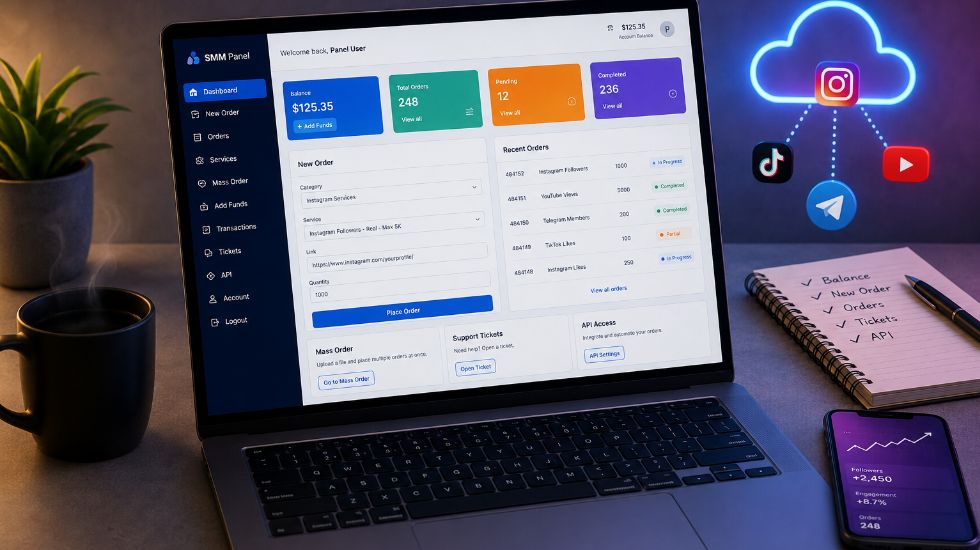
What Is an SMM Panel Dashboard?

An SMM panel dashboard is the main control area where users manage their account, balance, services, orders, payments, support tickets, and sometimes API access. For beginners, the dashboard may look like a simple menu, but in reality, it is the center of the full SMM panel workflow: add funds, choose a service, submit a link, place an order, track status, and contact support when needed. 📊

If you are using an Instagram Smm Panel or any other social media panel for the first time, understanding the dashboard helps you avoid wrong orders, payment confusion, duplicate submissions, and support delays. A good dashboard should make every step clear before you spend balance or submit a social media link.

What Is an SMM Panel Dashboard?

Direct answer: An SMM panel dashboard is the main user area inside an SMM panel where customers can manage balance, browse service categories, place new orders, track order status, open support tickets, review transactions, use Mass Order, and access API settings if the panel supports reseller or developer features.

In simple words, the dashboard is the control center of the panel. Instead of contacting support for every small task, the user can manage most actions from one place. A clear dashboard helps beginners understand what service they are ordering, how much balance they have, what link they should submit, when delivery may start, and what status the order currently shows.

A dashboard does not guarantee better service quality by itself. It only helps users manage the workflow. The final result still depends on the selected service, provider quality, start time, delivery speed, refill terms, platform behavior, and how carefully the user follows the service rules.

What Can You Do Inside an SMM Panel Dashboard?

Inside an SMM panel dashboard, users can usually add funds, choose services, place new orders, check previous orders, open support tickets, review balance history, and manage account settings. Some dashboards also include advanced tools such as API access, Mass Order, drip-feed, refill requests, and cancellation options.

If you are still learning the basic concept behind panels, What is an SMM panel? explains how these platforms organize different social media services in one place. The dashboard is the practical part of that system where the user actually performs each action.

Dashboard Action What It Means Why It Matters
Add Balance Deposit funds into your panel wallet. You need balance before placing most orders.
Browse Services Review available platforms, categories, and service types. Helps you choose the correct service before ordering.
Place New Orders Select service, link, quantity, and submit the order. This is the main ordering workflow.
Track Orders Check pending, processing, completed, partial, or cancelled status. Reduces confusion after payment.
Open Tickets Contact support about payment, order, refill, or API issues. Gives users a structured help path.
Use API Connect another website or reseller system to the panel. Useful for automation and reseller workflows.

Why Is the Dashboard Important in an SMM Panel?

The dashboard is important because it organizes the entire user journey. Without a dashboard, users would need to contact support manually for balance, orders, service details, tracking, refunds, refill requests, and account updates. A dashboard makes the process faster, clearer, and easier to manage.

A strong dashboard also reduces mistakes. When service descriptions, prices, minimum order, maximum order, start time, speed, refill rules, and link requirements are shown clearly, users are less likely to submit the wrong link or choose the wrong service.

In real SMM panel usage, many support problems come from dashboard misunderstanding. A user may not know what Pending means, may place a duplicate order, may ignore refill rules, or may submit a private link. A well-structured dashboard prevents many of these issues before they happen.

Main Sections of an SMM Panel Dashboard

Most SMM panel dashboards have similar core sections, although design and names may vary from one provider to another. The most important parts are New Order, Services, Add Funds, Orders, Tickets, Balance, Transactions, Mass Order, API, and Account Settings.

Dashboard Section What It Does Why It Matters
New Order Lets users choose service, link, and quantity. Main order placement area.
Add Balance / Add Funds Lets users deposit money into the wallet. Required before ordering.
Services Shows available services, prices, and limits. Helps users compare options.
Orders Shows previous and active orders. Helps users track progress.
Tickets Lets users contact support. Helps with problems and questions.
Transactions Shows deposits and balance changes. Helps payment tracking.
Mass Order Lets users submit multiple orders at once. Useful for agencies and resellers.
API Provides API key and documentation. Useful for automation.
Account Settings Manages profile, password, and security. Protects the user account.

New Order Page: Where Users Place Orders

The New Order page is usually the most important section inside an SMM panel dashboard. This is where users choose a service category, select a service, paste the target link, enter quantity, review the price, and submit the order.

A good New Order page should clearly show the service name, platform, price, minimum order, maximum order, start time, delivery speed, refill status, and link requirements. These details help users understand what they are buying before they confirm the order.

If the New Order page is unclear, beginners may submit the wrong link, choose a service for the wrong platform, order below the minimum quantity, or expect refill from a no-refill service. That is why service notes should be visible before the user clicks submit.

Add Balance or Add Funds Section

The Add Balance or Add Funds section lets users deposit money into their SMM panel wallet. Many panels use a prepaid balance system, meaning users add funds first and then spend that balance on orders. This makes repeat ordering easier because users do not need to pay separately for every order.

A good Add Funds section should explain payment methods, minimum deposit, processing time, fees, transaction status, and what to do if balance does not update. This is especially important for first-time users who may worry if payment is completed but the wallet still looks unchanged.

Add Funds Element Why It Matters
Payment Method Shows how users can deposit money.
Minimum Deposit Prevents payments below the accepted amount.
Transaction ID Helps support verify missing payments.
Deposit History Lets users review previous balance updates.
Manual Review Notice Explains delays for bank, crypto, or manual payments.

Services List: How Users Choose the Right Service

The Services List shows all available services inside the dashboard. It may include platforms such as Instagram, TikTok, YouTube, Telegram, Facebook, Twitter/X, Spotify, Discord, LinkedIn, and more. The list usually includes service name, price, minimum quantity, maximum quantity, start time, speed, refill status, and notes.

This section connects closely with What Are SMM Panel Service Categories? because categories help users find the right service faster. Without clear categories, users may confuse followers, likes, views, comments, story views, subscribers, or country-targeted services.

Service clarity is one of the most important parts of the dashboard. A user should understand what each service does before ordering. If the service name is vague, users may order a post service for a profile link, choose a non-refill service by mistake, or place an order on the wrong social network.

Service ID: Why It Appears Inside the Dashboard

A Service ID is a unique number or code assigned to each service inside the panel. It helps the system identify exactly which service the user selected. Two services may look similar by name, but their Service IDs are different because they may have different prices, providers, speeds, refill rules, or quality levels.

If you are using Mass Order or API, Service ID becomes even more important because the system may require the exact ID to submit the order correctly. The article What Is Service ID in an SMM Panel? can help beginners understand why this number should not be ignored.

Service ID Use Case Why It Matters
Normal Orders Identifies the selected service inside the dashboard.
Mass Order Allows users to submit multiple orders using the right service code.
API Orders Lets external systems send orders to the correct service.
Support Review Helps support understand which service caused an issue.

Order History and Order Status Tracking

Order History is the dashboard section where users can review all previous and active orders. A clear order history usually shows Order ID, service name, submitted link, quantity, charge, start count, remaining amount, date, and current status.

Order status tracking is one of the most useful dashboard features because users often worry when an order does not start instantly. If the dashboard explains statuses clearly, users are less likely to open unnecessary support tickets or place duplicate orders too soon.

For users who want a deeper guide, How to Track an SMM Panel Order? explains how order status, Order ID, service name, submitted link, and delivery progress work together after an order is placed.

Order Status Meaning
Pending The order was submitted but has not started yet.
Processing The order is being prepared or handled.
In Progress Delivery has started.
Completed The order is marked finished.
Partial Only part of the order was delivered.
Cancelled The order stopped and will not continue.

Order ID: Why It Matters Inside the Dashboard

An Order ID is the unique number assigned to each order after submission. It helps users and support teams identify the exact order when checking delivery, payment, refill, cancellation, partial status, or missing result issues.

Users should always save or reference the Order ID when contacting support. A message like “my order is not working” is too broad, but a message with Order ID, service name, submitted link, and issue description is much easier to review. The guide What Is an Order ID in an SMM Panel? explains this tracking role in more detail.

Support Tickets and Customer Help

The Support or Tickets section lets users contact the panel team when something is unclear or not working. Users may need help with missing balance, pending orders, cancelled orders, wrong links, partial delivery, refill requests, API problems, or payment issues.

A good support ticket should include the Order ID, service name, submitted link, payment proof if needed, screenshot, and a short explanation of the issue. This helps support review the case faster and avoid unnecessary back-and-forth messages.

If you want to understand this support process better, What Is a Support Ticket in an SMM Panel? explains how users should report order or payment issues inside the dashboard.

Mass Order Section: What Does It Do?

Mass Order is a dashboard feature that allows users to submit multiple orders at once. Instead of placing each order one by one, users can enter several lines with service ID, link, and quantity. This is useful for resellers, agencies, and users managing multiple client campaigns.

Mass Order should be used carefully because one formatting mistake can affect many orders. Users should check service IDs, link formats, quantity limits, and public accessibility before submitting a bulk order. Beginners should usually test normal orders first before using Mass Order.

API Section for Resellers and Developers

The API section is used by resellers, developers, and agencies who want to automate ordering from another website, app, bot, or dashboard. It usually contains an API key, endpoint URL, documentation, and supported actions such as service list, add order, status, balance, refill, and cancel.

API access is useful when a reseller wants to connect their own platform to the SMM panel. However, API keys should be protected carefully. They should never be shared publicly, posted in screenshots, or placed inside exposed front-end code.

API Dashboard Item What It Means
API Key Private key used to authorize API requests.
Endpoint URL The address external systems use to send API requests.
Services Action Pulls available services from the panel.
Add Order Action Places a new order automatically.
Status Action Checks order progress.
Balance Action Checks available account balance.

Account Settings and Security Options

Account Settings help users manage profile details, password, email, notifications, API key, and sometimes security options. This section is important because the dashboard holds balance, orders, transaction history, and sometimes reseller API access.

Users should use strong passwords, avoid sharing dashboard access, and protect API keys. If the dashboard offers two-factor authentication or login security options, enabling them can reduce account risk. A dashboard is useful only when the account itself is secure.

What Makes an SMM Panel Dashboard Beginner-Friendly?

A beginner-friendly SMM panel dashboard should be simple, clear, and transparent. Users should not need technical knowledge to add balance, choose a service, place an order, or check status. The dashboard should explain important terms like minimum order, maximum order, start time, speed, refill, no-refill, pending, partial, and cancelled.

The best dashboards reduce mistakes before they happen. They show clear service descriptions, link requirements, pricing, status updates, and support options so users understand the order process from the beginning.

Feature Why It Helps Beginners
Clear Service Categories Users can find the right platform faster.
Simple Order Form Reduces wrong submissions.
Visible Balance Users know how much they can spend.
Service Descriptions Explains rules before ordering.
Start Time and Speed Notes Sets timing expectations.
Refill Labels Shows whether drops may be replaced.
Ticket Support Gives users a help path.
Mobile-Friendly Layout Makes ordering easier on phones.

Common Dashboard Terms Beginners Should Know

New users often get confused because SMM panel dashboards use short operational terms. Knowing these terms makes the dashboard easier to use and reduces mistakes after ordering.

Term Meaning
BalanceMoney available in the user account.
Add FundsDeposit money into the dashboard wallet.
Service IDUnique number or code for a service.
Minimum OrderSmallest allowed quantity.
Maximum OrderLargest allowed quantity.
Start TimeEstimated time before order begins.
SpeedDelivery pace after order starts.
PendingOrder submitted but not started yet.
CompletedOrder is marked finished.
PartialOnly part of the order was delivered.
CancelledOrder stopped and will not continue.
RefillReplacement support if drops happen within service rules.
API KeyPrivate key used for automation.

Common Mistakes Users Make Inside the Dashboard

Most dashboard mistakes happen when users rush. They add balance before testing, choose the wrong service, submit the wrong link, ignore service notes, or contact support without Order ID. These mistakes are avoidable if users read the dashboard carefully before placing orders.

Mistake What Can Happen Better Approach
Choosing wrong service Order may fail or deliver incorrectly. Read service description first.
Submitting wrong link Order may stay pending or cancel. Use the exact public link.
Ignoring min/max limits Order may fail. Stay within allowed quantity.
Not checking start time User may panic too early. Wait within the service window.
Placing duplicate orders Orders may conflict. Wait for the first order to finish.
Ignoring refill rules User expects replacement when unavailable. Check refill or no-refill label.
Not saving Order ID Support review becomes harder. Keep order details available.

How to Use an SMM Panel Dashboard Safely?

To use an SMM panel dashboard safely, start with a small deposit, place a small test order, read service descriptions, use correct public links, avoid sharing passwords, check refill rules, and contact support with full order details if something goes wrong.

Users should also remember that dashboard convenience does not replace social media strategy. For broader context, HubSpot’s social media strategy guide explains why goals, audience understanding, content planning, and measurement still matter beyond dashboard-based ordering.

A dashboard should be treated as an order-management tool, not a guarantee of social media growth. Safe use means understanding what you are ordering, testing first, tracking results, and avoiding unrealistic expectations.

What Happens After Delivery?

After delivery, the dashboard may mark the order as completed, partial, cancelled, or still in progress depending on the service result. Users should review the final count, visible result, order status, refill eligibility, and whether the service notes match the actual delivery behavior.

If an order drops later, the next step depends on the selected service rules. If refill is included, the user may request replacement within the allowed refill period. If the service is no-refill, the dashboard may not provide free replacement after delivery.

Final Thoughts on SMM Panel Dashboards

So, What Is an SMM Panel Dashboard? It is the main control center where users manage balance, services, orders, order tracking, tickets, transactions, Mass Order, API, and account settings. A clear dashboard makes the SMM panel easier to use, especially for beginners.

The best dashboard is not only visually clean; it is practical. It explains services, shows balance clearly, tracks order status, provides ticket support, displays transaction history, and helps users avoid common mistakes like wrong links, duplicate orders, unclear refill expectations, or missing support details. âś…

FAQ About SMM Panel Dashboards

The questions below answer common beginner concerns about SMM panel dashboards, including what users can do inside them, why they matter, what sections they include, and how to use them safely.

What is an SMM panel dashboard?

An SMM panel dashboard is the main user area where customers manage their account, add balance, choose services, place orders, track order status, open support tickets, review transactions, and access tools like Mass Order or API if available.

What can I do inside an SMM panel dashboard?

Inside an SMM panel dashboard, you can usually add funds, browse services, submit new orders, check order history, view pending or completed orders, open support tickets, review transactions, manage account settings, and use API options if the panel supports automation.

Why is the dashboard important in an SMM panel?

The dashboard is important because it organizes the full order workflow in one place. It helps users understand their balance, available services, submitted links, order statuses, delivery progress, support requests, and payment or transaction history.

What should a good SMM panel dashboard show?

A good SMM panel dashboard should show user balance, service categories, service descriptions, order form, min/max limits, start time, speed, refill rules, order history, support tickets, transactions, API details, and account settings in a clear layout.

Is an SMM panel dashboard safe to use?

An SMM panel dashboard can be safer when it uses public-link ordering, secure payment methods, clear service descriptions, transparent support rules, and account security settings. Users should avoid sharing social media passwords and should test the panel with a small order first.

What is the difference between Orders and Tickets in a dashboard?

Orders show the services you have submitted and their delivery status, while Tickets are used to contact support about problems or questions. If an order is delayed, partial, cancelled, or missing, the user should open a ticket with the Order ID and relevant details.