

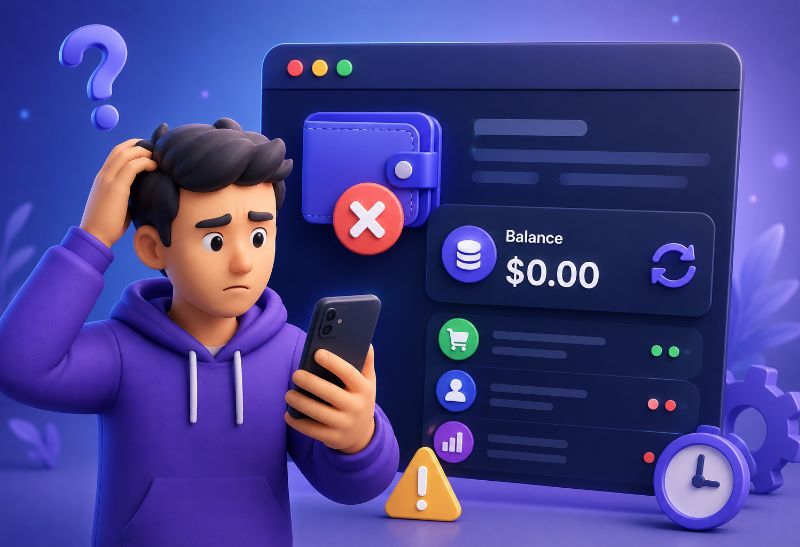
When you add funds to an SMM panel and the wallet balance does not change, it can feel stressful. You may see that the payment was sent, but the dashboard still shows the old amount. This does not always mean the money is lost. In many cases, the payment is still pending, needs manual review, has a gateway callback delay, or has not been matched with your account yet. 💳
If you use an Instagram Smm Panel or any other SMM panel, understanding Why Is My SMM Panel Balance Not Updated? helps you know what to check before paying again or opening a support request. The most important step is to save your transaction ID, payment screenshot, amount, payment method, date, and account email or username.
Why Is My SMM Panel Balance Not Updated?
Direct answer: Your SMM panel balance may not be updated because the payment is still pending, the gateway callback failed, manual payment review is required, the wrong amount was sent, the minimum deposit was not met, the transaction ID is missing, crypto confirmation is delayed, or support has not verified the payment proof yet. Balance not updated usually means the deposit has not been matched, confirmed, or credited inside the panel wallet yet.
In simple words, Why Is My SMM Panel Balance Not Updated? is a payment troubleshooting question. The panel may not be able to add the funds automatically if the payment record does not match your account, invoice, payment method, transaction reference, or deposit amount.
The safest action is not to panic and not to pay again immediately. First, check the payment status, payment method instructions, minimum deposit, transaction history, and whether the payment method is automatic or manual. If the balance is still missing after the expected time, open a support ticket with full proof.
Want a cleaner Add Balance experience? Create your NiceSMMPanel account, start with a small deposit, and learn how wallet balance, payment records, and support tickets work before adding larger funds.
Sign Up and Test a Small Deposit
What Does Balance Not Updated Mean in an SMM Panel?
Balance not updated means your available wallet balance has not changed after a payment attempt. This can happen even when the payment looks successful outside the panel because the panel still needs confirmation, callback data, manual approval, or matching transaction details before crediting your account.
If you are still learning how panels organize wallet, orders, services, and users, What is an SMM panel? explains the basic system behind SMM panel dashboards and account workflows.
The balance inside an SMM panel usually works like prepaid wallet credit. Users add funds first, then use that balance to place orders. If the balance has not appeared yet, the panel usually cannot deduct money for new orders.
Common Reasons Your SMM Panel Balance Is Not Added
There are several possible reasons why your balance may not appear after payment. Some are normal delays, while others require support review. The table below shows the most common causes and what users should do next.
| Reason |
What It Means |
What to Do |
| Payment still pending |
Gateway, bank, wallet, or crypto network has not confirmed the payment. |
Wait and check payment status. |
| Manual review needed |
Admin must verify the payment manually. |
Open a support ticket with proof. |
| Gateway callback failed |
Payment succeeded, but the panel did not receive confirmation. |
Send transaction ID and screenshot. |
| Wrong amount sent |
Payment does not match invoice, required amount, or minimum deposit. |
Contact support with payment details. |
| Transaction ID missing |
Support cannot match the payment quickly. |
Copy the payment reference or receipt number. |
| Crypto underpaid |
The received amount may be lower than the required amount. |
Send proof and wait for review. |
| Duplicate payment confusion |
User paid more than once and records are unclear. |
Provide all transaction IDs. |
| Minimum deposit issue |
Amount may be below the allowed minimum. |
Check Add Funds rules. |
Payment Successful but Balance Missing: What Usually Happens?
A payment can be successful on the payment provider side but still not appear inside the panel wallet. This usually means the payment confirmation did not reach the panel, the payment has not been matched with your account, or the payment method requires manual verification.
To understand where balance normally enters the account, How to Add Balance in SMM Panel explains the standard Add Funds process, including payment method selection, deposit amount, and wallet update expectations.
If the balance is missing after a successful payment, collect the proof first. Do not rely only on a message that says “paid.” Support usually needs a transaction reference to find and verify the deposit.

Automatic Payment Gateway Delay
Some payment methods are designed to credit balance automatically, but delays can still happen. A payment gateway may approve the payment but fail to send the callback to the SMM panel immediately. In that case, the payment is successful on the provider side, but the panel wallet does not update yet.
Users should first check whether the payment page shows completed, pending, failed, or under review. If the payment is completed but the balance is still missing after the expected time, contact support with the transaction ID and payment screenshot.
| Gateway Situation |
What It Means |
User Action |
| Payment completed |
The gateway accepted the payment. |
Check whether panel balance updated. |
| Callback delayed |
Panel did not receive confirmation immediately. |
Wait for expected window or contact support. |
| Payment pending |
Gateway has not confirmed the payment yet. |
Do not pay again too quickly. |
| Payment failed |
The transaction was not completed. |
Confirm failure before trying again. |
Manual Payment Review
Manual payment methods usually do not update balance instantly. Bank transfer, Wise, Payoneer, manual crypto, some PayPal options, and local payment methods may require an admin to verify the payment before adding balance to the account.
If the payment method is manual, the user should not expect instant wallet credit. Manual payment review usually requires a support ticket, transaction ID, payment amount, payment date, and screenshot or receipt.
A good rule is simple: if the payment method says manual, prepare proof before asking support to add the balance.
Wrong Amount or Payment Mismatch
Balance may not update if the user sends the wrong amount. For example, the invoice may require $10, but the user sends $9.50 after fees, sends a different currency, or pays below the minimum deposit. The panel may not automatically match the payment because the received amount does not match the expected deposit.
This is common with crypto payments, local wallets, and manual payment methods where fees or exchange rates can change the received amount. Users should always check the exact amount, currency, fee rule, and minimum deposit before paying.
Want to avoid payment mismatch problems? Join NiceSMMPanel and start with a small deposit so you can review minimum amounts, wallet updates, and payment records before adding more balance.
Create Account and Add Funds Carefully
Missing Transaction ID or Payment Proof
If support cannot see which payment belongs to your account, your balance may stay missing until you provide proof. A transaction ID, payment reference, receipt, screenshot, invoice number, sender name, payment amount, and date can help support match the payment manually.
A vague message like “I paid, add my balance” is usually not enough. The more complete the proof is, the easier it is for the support team to verify the deposit and credit your account.
| Proof Type |
Why It Helps |
| Transaction ID |
Helps support locate the exact payment record. |
| Payment screenshot |
Shows the amount, status, date, and payment method. |
| Invoice or reference number |
Helps match payment with the Add Funds request. |
| Account username or email |
Helps support find the correct panel account. |
| Payment date and time |
Helps support search payment logs faster. |
Crypto Payment Confirmation Delay
Crypto payments may take longer because the network may need confirmations before the panel or payment processor marks the transaction as complete. If the payment is underpaid, sent to the wrong network, sent with low fees, or not confirmed yet, the balance may not appear immediately.
Users should save the transaction hash, amount, wallet address, network name, and screenshot. If the crypto payment is confirmed on-chain but not added to the panel, support can use that information to review it manually.
With crypto payments, network choice matters. Sending payment through the wrong chain or network can make verification harder and may require longer manual review.
Bank, Card or Local Wallet Processing Delay
Bank cards, local wallets, and transfer-based methods can also have delays. The bank may hold the transaction, the wallet provider may show pending status, or the payment processor may delay confirmation. In these cases, the panel may not add balance until the payment is fully confirmed.
Users should check both sides: the payment app and the SMM panel dashboard. If the payment app says pending, the panel may not be able to credit the account yet. If the payment app says completed but the panel balance is still missing, support may need the proof.

Payment Completed but Gateway Callback Failed
A gateway callback is the signal sent from the payment processor back to the panel after a payment is completed. If that signal fails, the payment may be successful but the panel does not automatically know that it should update your balance.
This is one of the most common reasons a user says, “payment successful but balance not added.” The payment exists, but the panel wallet needs manual verification. In this case, the transaction ID and payment screenshot are essential.
| Callback Problem |
Result |
Fix |
| Gateway approved payment |
Payment completed outside the panel. |
Check if balance updated. |
| Callback failed |
Panel did not auto-credit wallet. |
Send transaction proof to support. |
| Invoice mismatch |
Payment cannot be matched automatically. |
Provide account and invoice details. |
Minimum Deposit and Fee Problems
Some SMM panels require a minimum deposit. If the user pays below the minimum amount, the system may not credit the balance automatically. Payment fees can also create issues if the user sends the correct amount but the panel receives less after fees.
Before adding funds, users should check the Add Funds page for minimum deposit, supported currency, payment fee, network fee, manual payment instructions, and expected update time.
This step is especially important for crypto, local payment methods, and manual transfers where fee deductions can change the final received amount.
Duplicate Payment Confusion
Sometimes users pay twice because the first deposit does not appear quickly. This can create confusion if both payments have different transaction IDs, amounts, or statuses. Support may need to check each payment separately before adding the correct balance.
Do not make duplicate payments immediately unless support confirms the first payment failed. If you already paid twice, send all transaction IDs and screenshots in one ticket so the support team can review both payments together.
What Should You Check Before Contacting Support?
Before contacting support, users should confirm whether the payment is actually completed and whether the balance has already been added in another section of the dashboard. They should also check whether the payment method is automatic or manual.
If you are not familiar with dashboard areas like Add Funds, wallet, transactions, orders, and support, What Is an SMM Panel Dashboard? explains the main sections users normally see inside an SMM panel account.
- Check payment status: completed, pending, failed, or under review.
- Check the Add Funds page instructions.
- Check minimum deposit and payment fees.
- Check whether the payment method is manual.
- Check transaction history or wallet history.
- Check whether you paid from the correct account or invoice.
- Wait if the payment is still inside the normal confirmation window.
- Prepare transaction proof before opening a ticket.
What Information Should You Send to Support?
If your SMM panel balance is not updated, open a support ticket with complete payment details. Include your username or email, payment method, transaction ID, amount, date, screenshot, and invoice reference if available. If the payment was crypto, include the transaction hash and network.
If you are unsure how support requests work, What Is a Support Ticket in an SMM Panel? explains how to create a clear ticket with the right details instead of sending vague messages.
| Information |
Why It Helps |
| Account username or email |
Helps support identify your panel account. |
| Payment method |
Shows which gateway or manual method was used. |
| Transaction ID |
Helps locate the exact payment. |
| Payment screenshot |
Confirms payment proof. |
| Amount paid |
Helps match invoice and wallet credit. |
| Currency or crypto network |
Important for crypto and local payments. |
| Date and time |
Helps support search payment logs. |
| Invoice or order reference |
Helps match the payment record. |
Want support-ready payment records from the start? Sign up on NiceSMMPanel, add funds carefully, and keep your wallet, transaction details, and support tickets organized in one dashboard.
Join NiceSMMPanel
How Long Should You Wait for Balance to Update?
Balance update time depends on the payment method. Automatic gateways may update within minutes, while manual payments, bank transfers, local wallets, and crypto payments may take longer. If the panel gives a specific waiting time, follow that first before opening a ticket.
If the payment is marked successful but balance is still missing after the expected window, contact support with transaction proof. Do not make repeated payments immediately unless support confirms the first transaction failed.
| Payment Method |
Typical Balance Behavior |
What to Do |
| Automatic gateway |
May update quickly, but callback delays can happen. |
Wait briefly, then send transaction ID if missing. |
| Manual payment |
Needs admin verification. |
Open ticket with payment proof. |
| Crypto payment |
May need network confirmations. |
Save transaction hash and network details. |
| Bank transfer |
May take longer depending on bank processing. |
Send receipt if expected time passes. |
| Local wallet |
May require manual or gateway confirmation. |
Keep payment screenshot and reference number. |
Can You Place Orders Before Balance Updates?
Usually, no. Most SMM panels use a prepaid balance system, which means the order cost is deducted from your available wallet balance. If the balance has not been added yet, you usually cannot place orders until the deposit appears in your account.
Users should wait until the balance is visible before placing orders. If the payment is completed but balance is missing, the payment issue should be solved first. Trying to place orders without available balance usually leads to failed order submission.
A safer workflow is: add funds, confirm the balance appears, choose the service, submit the correct link, then place the order.

How API Users Check Balance in an SMM Panel
For API users and resellers, balance problems can happen at two levels: the customer balance inside the reseller panel and the provider balance inside the upstream panel. If the provider balance is low or not updated, API orders may fail even if the reseller website looks normal.
API users should check the balance endpoint, payment logs, provider dashboard, failed order logs, and provider wallet status. A reseller may have enough local customer balance but still fail to send orders if the upstream provider balance is empty.
| API Balance Check |
Why It Matters |
| Local customer balance |
Shows whether the reseller customer has wallet credit. |
| Provider balance |
Shows whether the upstream account can place API orders. |
| Balance endpoint |
Helps resellers check funds programmatically. |
| Payment logs |
Help identify whether deposit was recorded. |
| Failed order logs |
May show balance-related API errors. |
Common Beginner Mistakes With Add Balance
Many missing-balance issues happen because users rush the payment process. They may ignore the minimum deposit, forget to save the transaction ID, send payment through the wrong network, or open a vague ticket without proof.
| Mistake |
What Can Happen? |
Better Approach |
| Paying without reading instructions |
Payment may not match invoice or method rules. |
Read Add Funds instructions first. |
| Sending below minimum deposit |
Balance may not auto-credit. |
Check minimum amount. |
| Not saving transaction ID |
Support review becomes slower. |
Save receipt or payment reference. |
| Paying wrong amount |
Payment mismatch happens. |
Pay the exact required amount. |
| Using wrong network for crypto |
Payment may not be detected correctly. |
Confirm network before sending. |
| Making duplicate payment too soon |
Creates confusion and support delay. |
Wait or contact support first. |
| Opening vague ticket |
Support asks for more details. |
Include proof and transaction ID. |
| Expecting manual payment to be instant |
Balance delay feels confusing. |
Wait for admin verification. |
Payment Safety: What You Should Never Share
When solving a balance issue, users should share payment proof, but they should not share sensitive account credentials. A support team may need transaction ID, screenshot, payment amount, date, username, or email, but normal SMM panel support should not need your social media passwords.
For account-safety context, Do SMM Panels Need Your Password? explains why standard SMM panel orders usually work with public links, not social media account passwords.
Also avoid sending card numbers, recovery codes, 2FA codes, or full private wallet access in a support ticket. Payment proof should verify the transaction, not expose your sensitive accounts.
How to Use an SMM Panel Safely After Your Balance Updates
After your balance appears, you should still use it carefully. Start with a small test order, read service descriptions, check link requirements, avoid duplicate orders, and do not spend your full balance on a service you have not tested yet.
For broader safety guidance, How to Use an SMM Panel Safely for Social Media Growth? explains how to use panels with realistic expectations, public-link ordering, careful service selection, and safer pacing.
Ready to add balance and order more confidently? Create your NiceSMMPanel account, start with a small deposit, review service rules, and place your first test order with a clear dashboard.
Sign Up and Start Carefully
What Happens After Support Adds the Balance?
After support verifies the payment, the missing amount may be added to your panel balance. You should check your wallet, transaction history, and available balance before placing orders. If the added amount is different from what you expected, check fees, exchange rates, minimum deposit rules, or support notes.
After the balance appears, you can choose a service, submit the correct link, select quantity, and place your order. Keep the payment ticket record in case you need follow-up later.
✅ Once the balance is updated, avoid rushing into a large order. A small test order is usually the better first step.
Final Thoughts on Missing SMM Panel Balance
So, Why Is My SMM Panel Balance Not Updated? The most common reason is that the payment has not been automatically matched, confirmed, or manually approved yet. It may be due to pending payment status, manual review, wrong amount, gateway callback failure, crypto confirmation delay, minimum deposit issues, or missing payment proof.
The final rule is simple: do not panic and do not pay again immediately. Check payment status, save the transaction ID, collect proof, verify minimum deposit and payment method rules, then open a support ticket if the balance does not update after the expected window. ✅
Want a better way to manage deposits and orders? Join NiceSMMPanel, keep your balance history organized, and start with a small deposit before scaling your campaigns.
Join NiceSMMPanel
FAQ About SMM Panel Balance Not Updated
The questions below answer common beginner concerns about missing SMM panel balance, successful payments, manual review, transaction proof, waiting time, and whether users can place orders before balance appears.
Why is my SMM panel balance not updated?
Your SMM panel balance may not be updated because the payment is pending, manual review is required, the gateway callback failed, the wrong amount was sent, the transaction ID is missing, crypto confirmation is delayed, or support has not verified the payment proof yet.
What should I do if payment is successful but balance is not added?
If payment is successful but balance is not added, open a support ticket with your transaction ID, payment screenshot, amount, payment method, date, invoice reference, and account username or email.
How long does it take for SMM panel balance to update?
Automatic payments may update within minutes, while manual payments, crypto payments, bank transfers, and local wallet payments may take longer. The exact time depends on the payment method and panel rules.
Does balance not updated mean my money is lost?
No, balance not updated does not always mean your money is lost. It usually means the payment has not been matched, confirmed, or credited yet. Support can review it if you provide clear transaction proof.
Can I place an order if my balance has not updated?
Usually, no. Most SMM panels require available wallet balance before placing orders. You should wait until the balance appears or contact support to resolve the payment issue first.
Should I pay again if my balance does not appear?
No, you should not pay again immediately. First check whether the original payment is pending, completed, failed, or under review. If it was successful, contact support with proof before making another payment.